Play UO Dark Ages
Follow these steps to install Ultima Online, setup ClassicUO, and connect to UO Dark Ages.
Step 1 — Download Ultima Online
Go to https://uo.com/client-download/
Scroll down until you see:
Already subscribed? Download the client
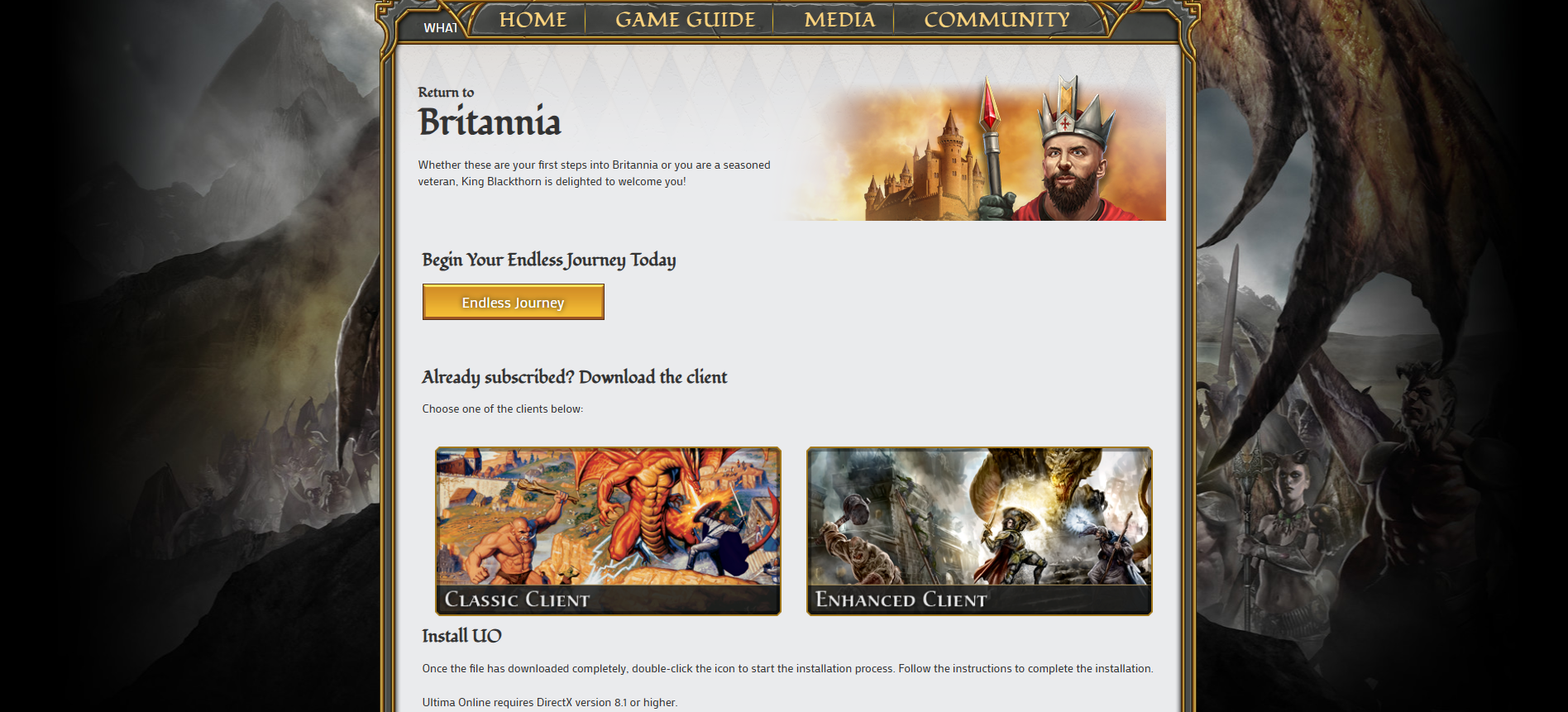
Download and install the Classic Client.
After installation, launch the client and allow it to fully patch. Close the client, then open it two or three more times to make sure all patches have downloaded.
Step 2 — Download ClassicUO
After Ultima Online is fully patched, go to https://classicuo.eu/
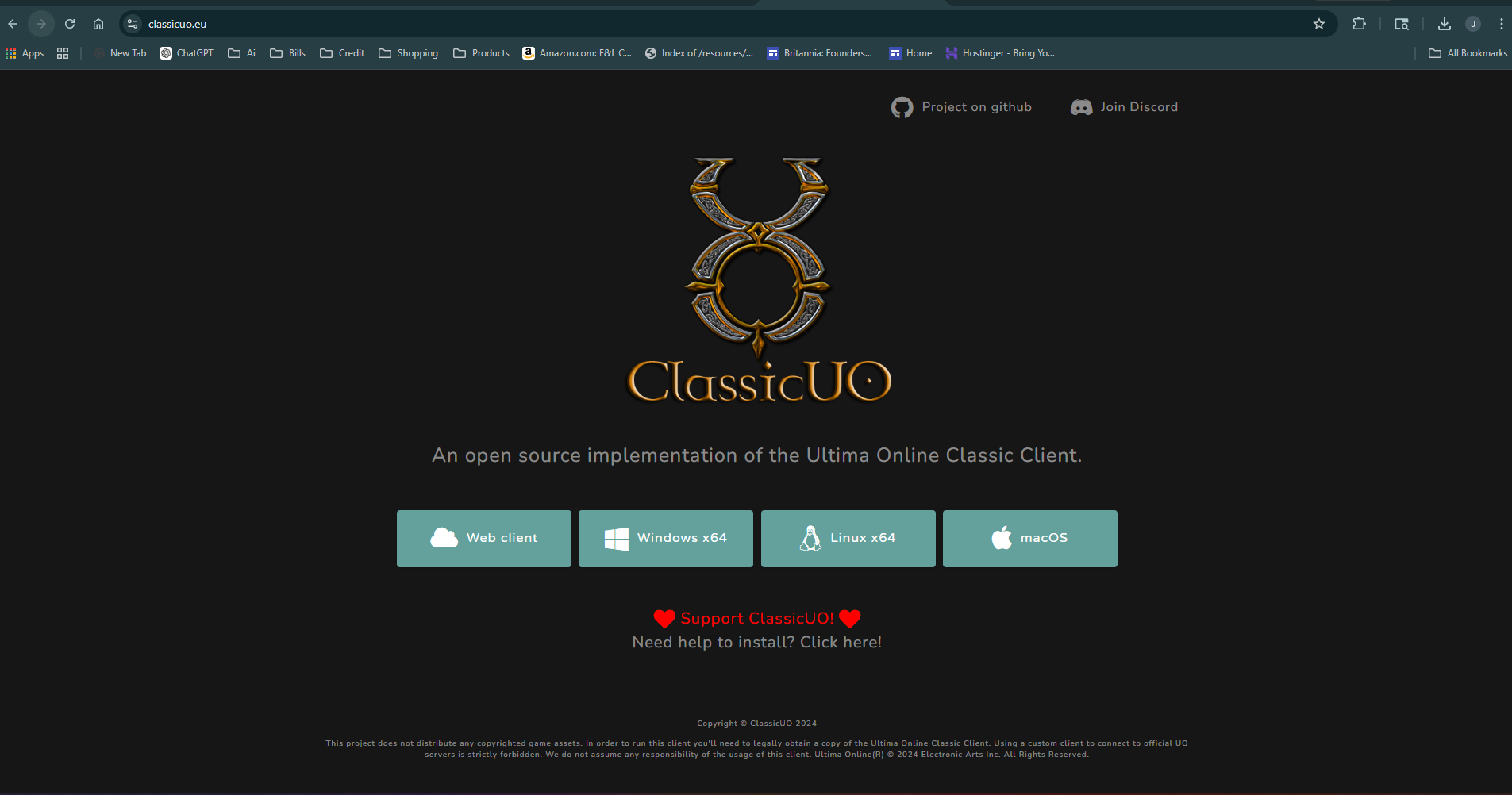
Download the correct ClassicUO client for your computer and install it normally.
Step 3 — Setup ClassicUO For UO Dark Ages
When ClassicUO opens, browse to your Ultima Online installation folder.
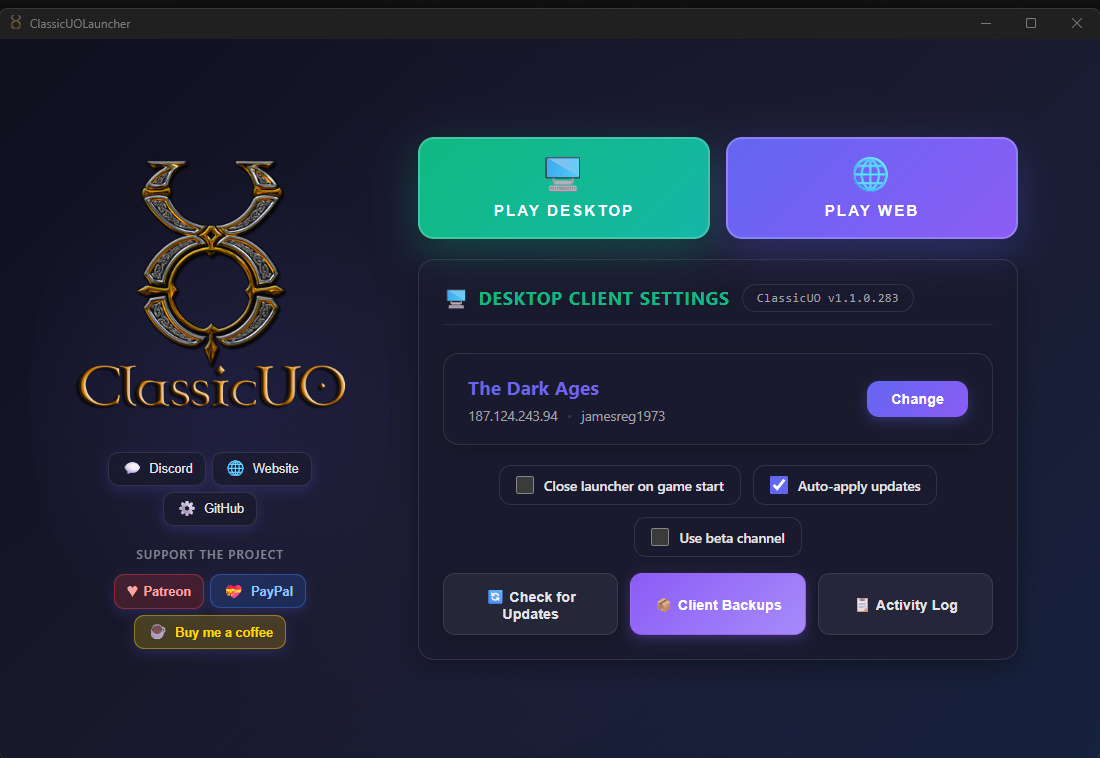
Add a new profile with these settings:
Profile Name: Dark Ages
Game Path: Your Ultima Online installation folder
ClassicUO Path: Where you installed ClassicUO
Server Address: 187.124.243.94
Port: 2593
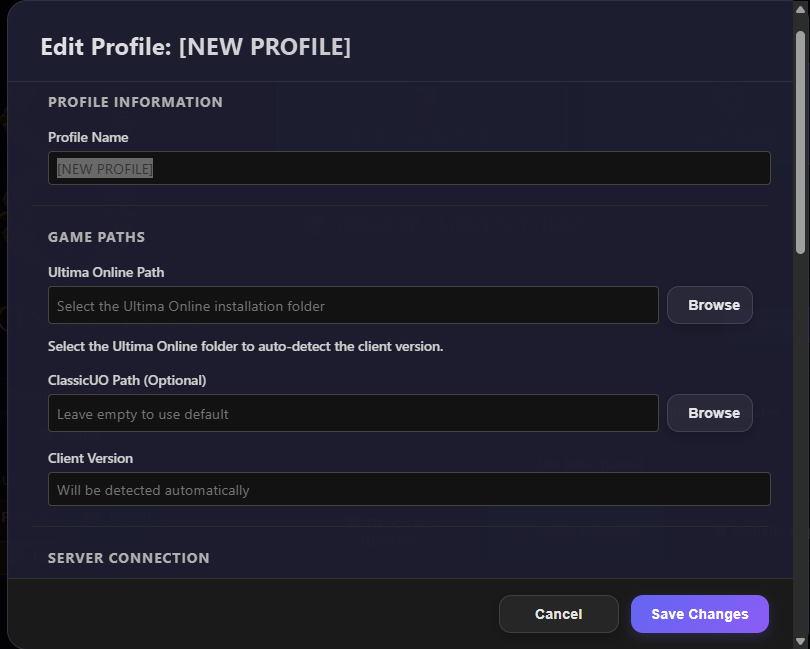
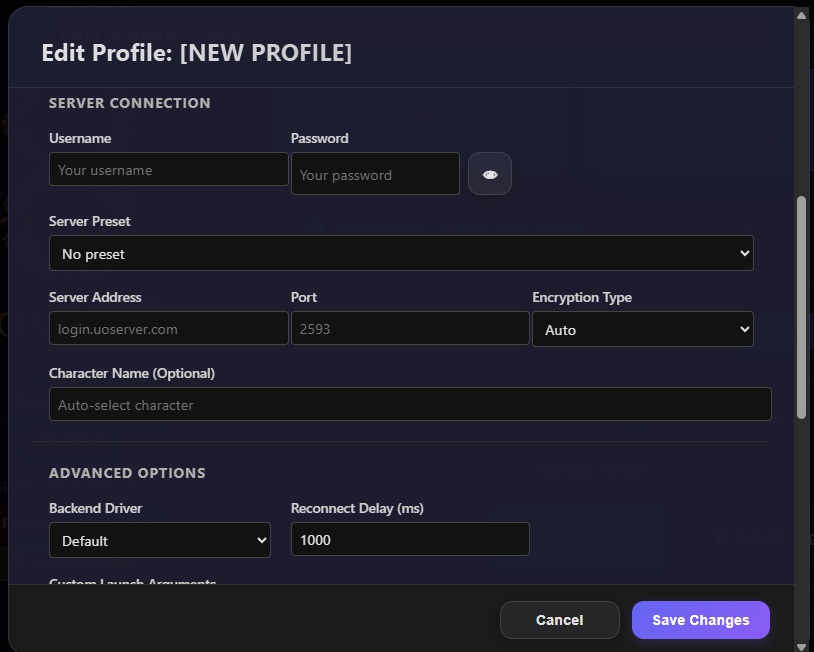
Server IP: 187.124.243.94
Port: 2593
Step 4 — Create Your Account
Save your ClassicUO profile and launch the game using the Play Desktop option.
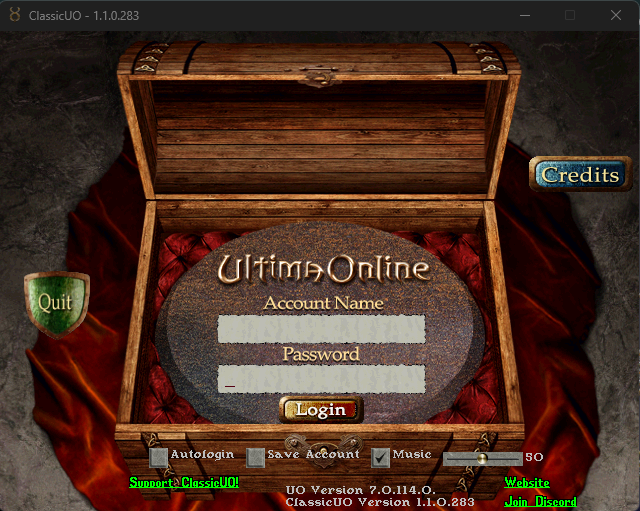
Log in using any username and password. Your account will automatically be created the first time you log in.
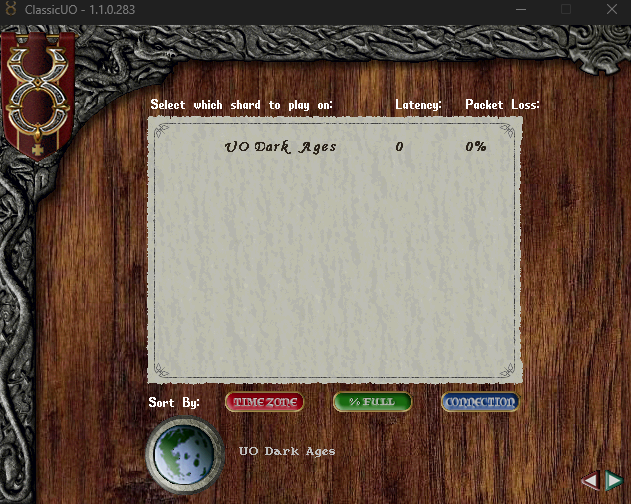
Select My Shard.
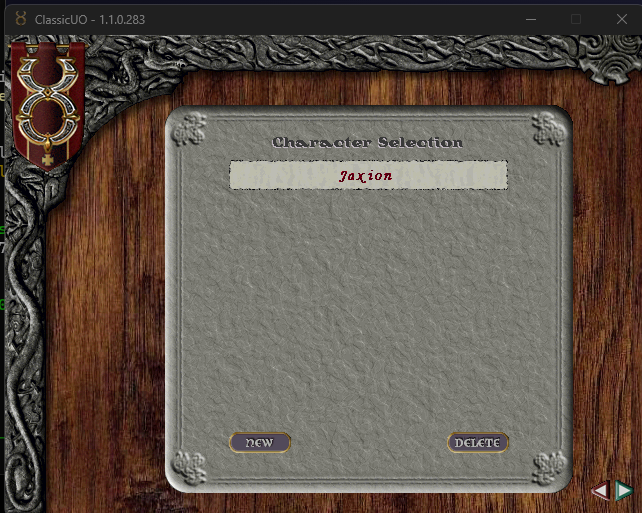
Select New.
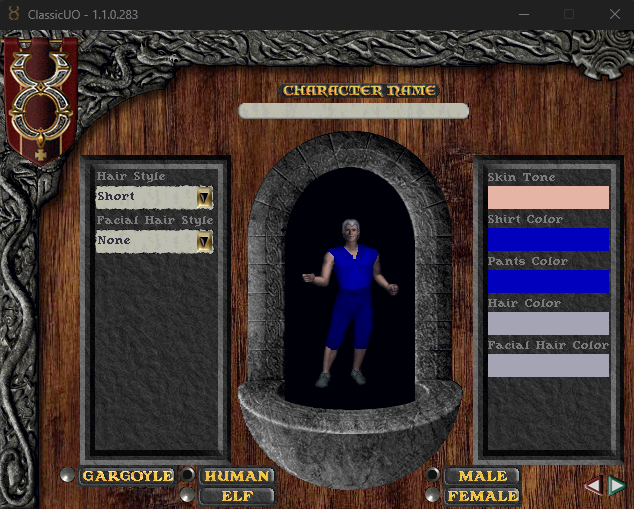
Choose your race, gender, appearance, and colors.
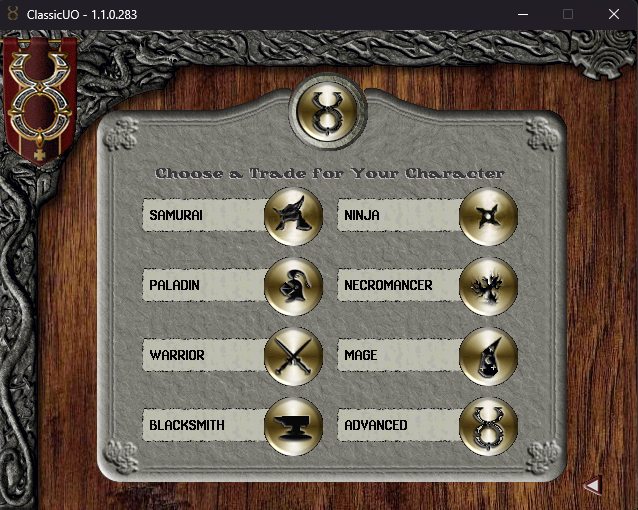
Select your class. More information about classes, professions, and skills can be found in the Player Guide.
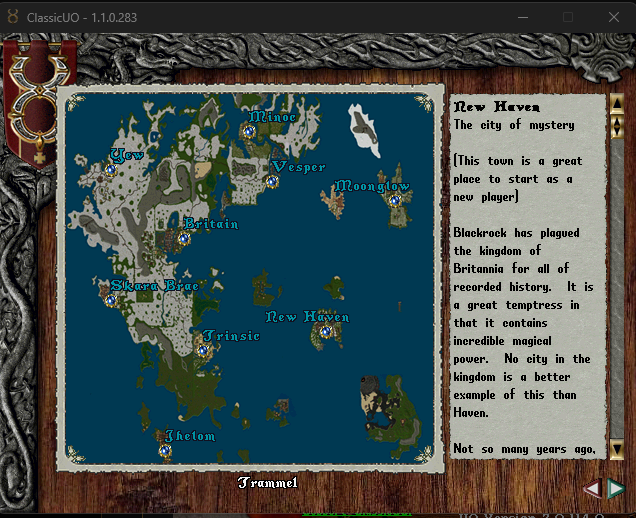
Select your starting town.
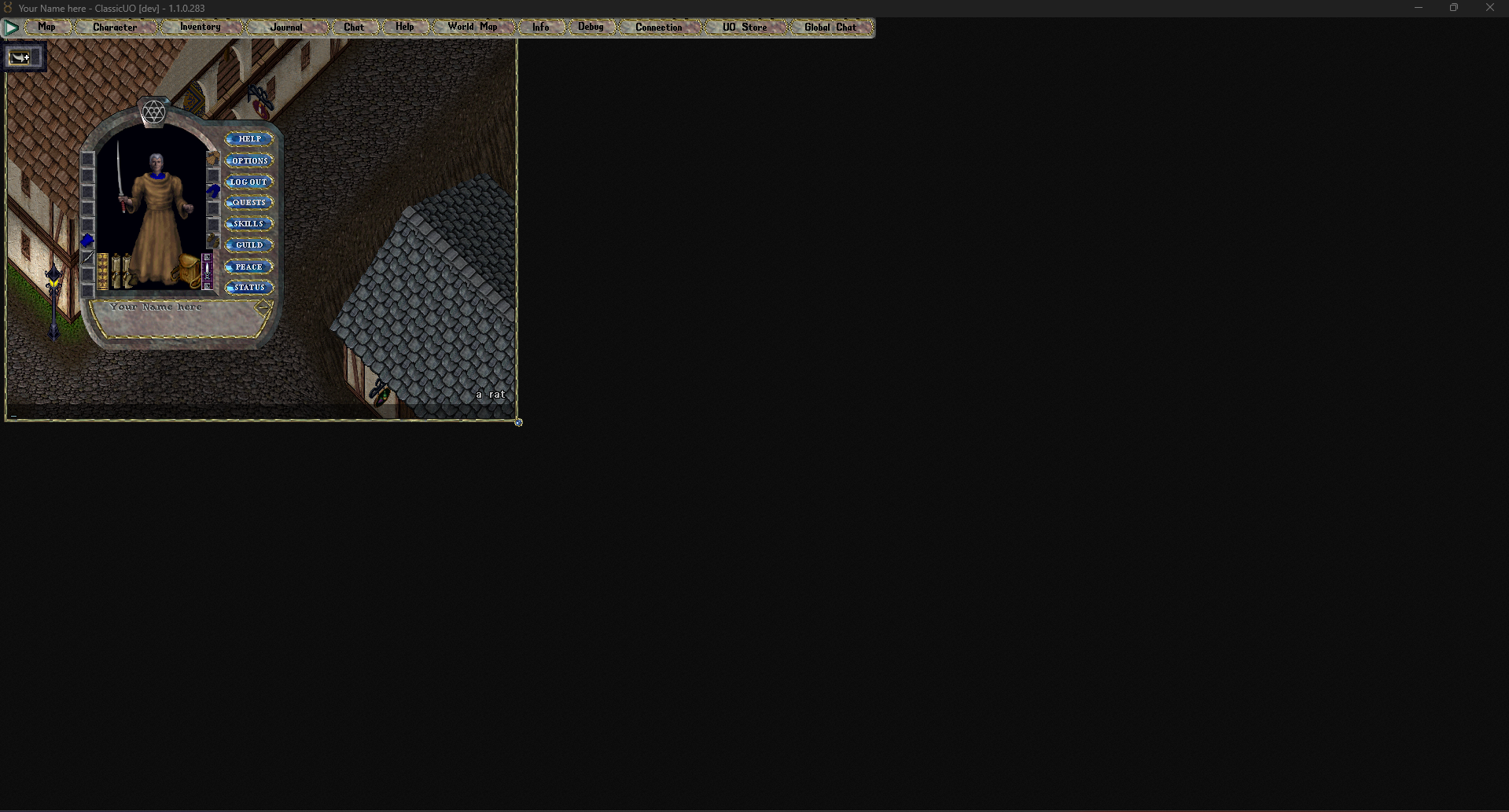
If the game window starts in a strange position, simply drag and resize it.
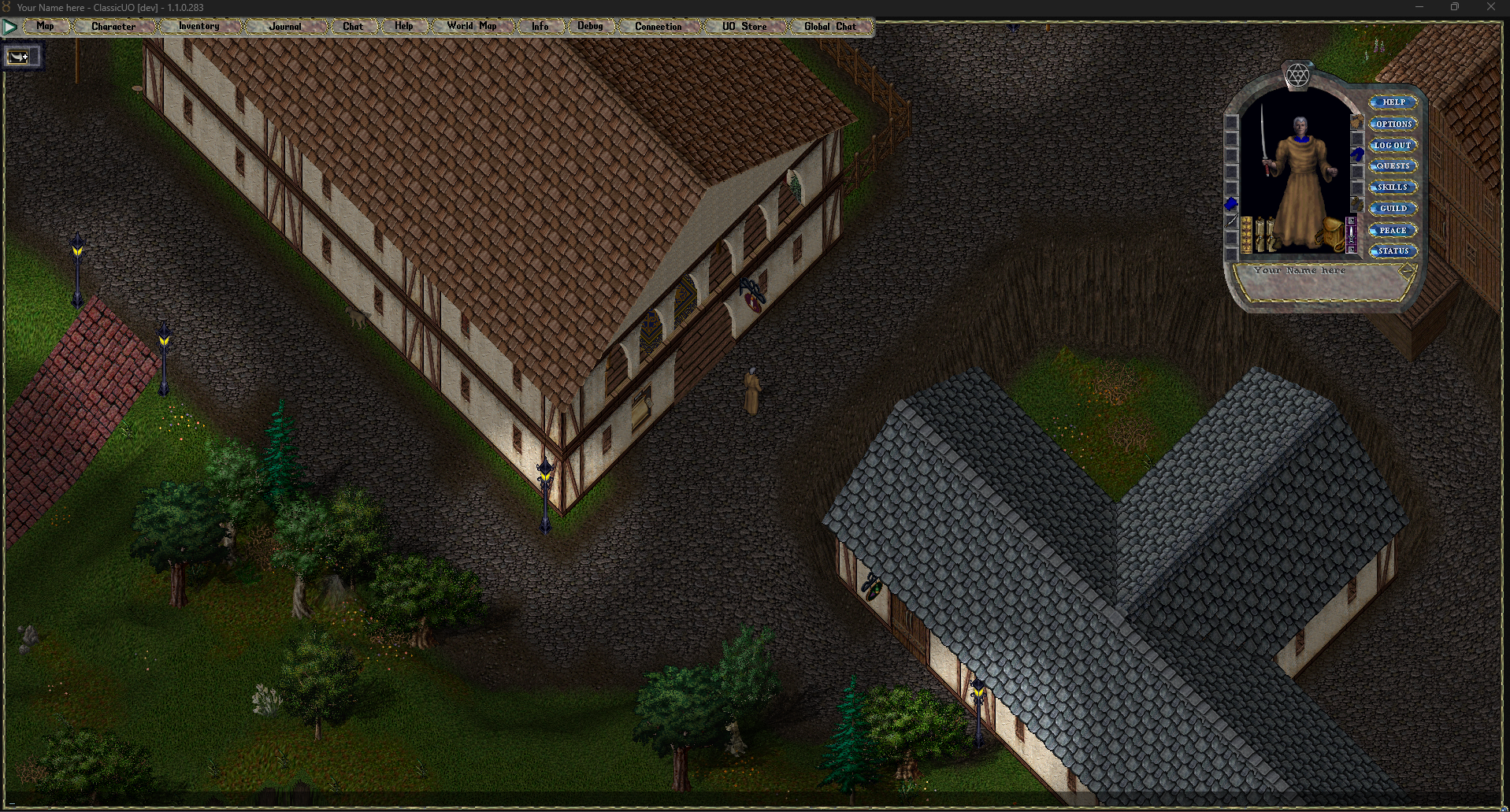
You are now ready to play.